
Krea 3 AI Image Generator & Editor
Create from a written brief or edit with up to eight reference images. Explore Krea 3 product photography, characters and design examples, choose 1K or 2K, and review credits before creating.
Examples
1 / 302An image model for iteration
Keep the idea. Change the image.
Krea 3 puts text generation and reference editing in one workspace. Preserve the product, direct the light, explore a different material, and inspect the result before the next decision.
Reference images add billable megapixels. High reasoning for editing adds five megapixels. Quotes follow the same engine as Create; speed depends on provider load and settings.
One model. Many directions.
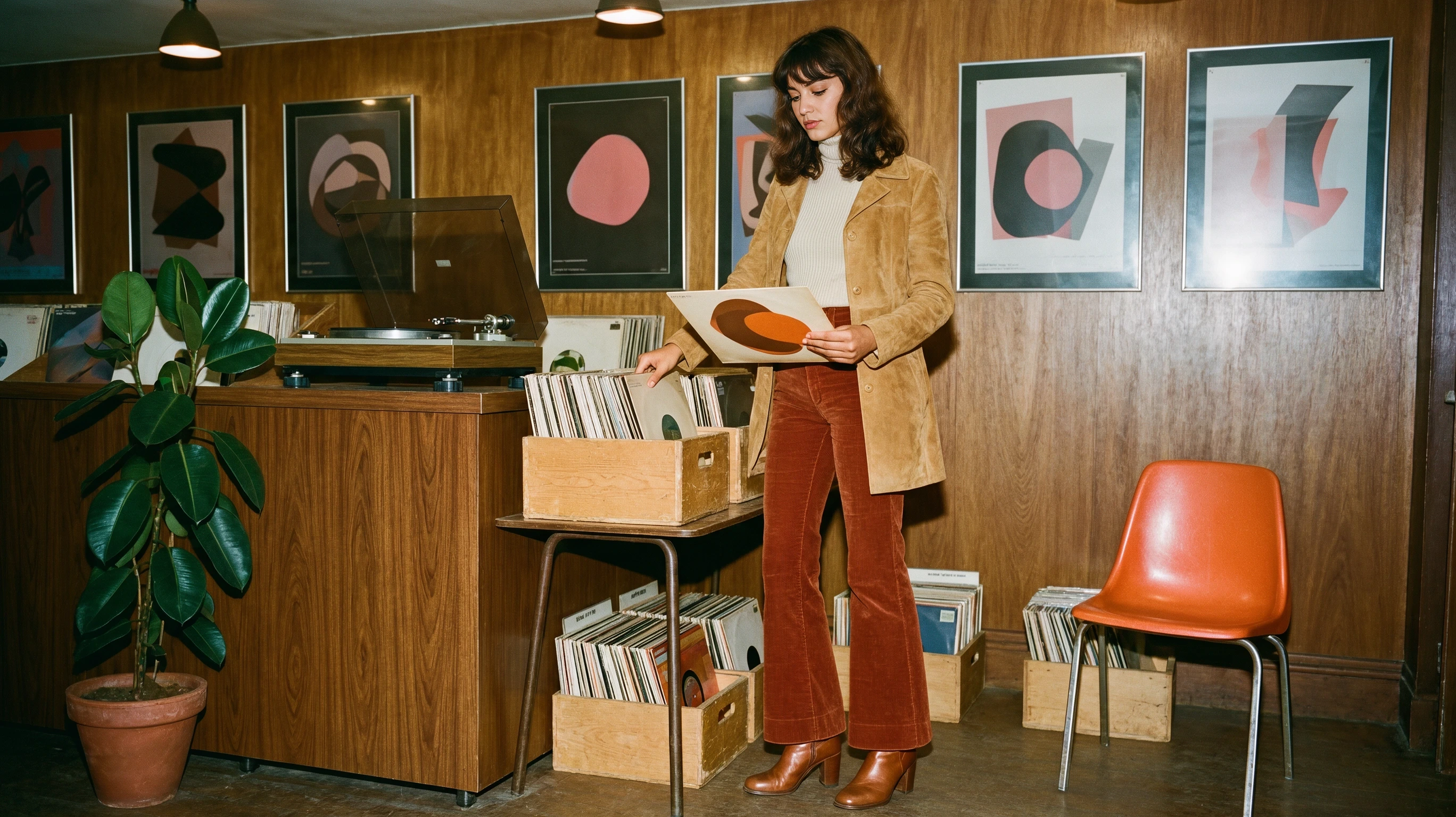
Krea 3 examples for real visual briefs. Select a scene, inspect its references, then bring the complete prompt into the workspace.
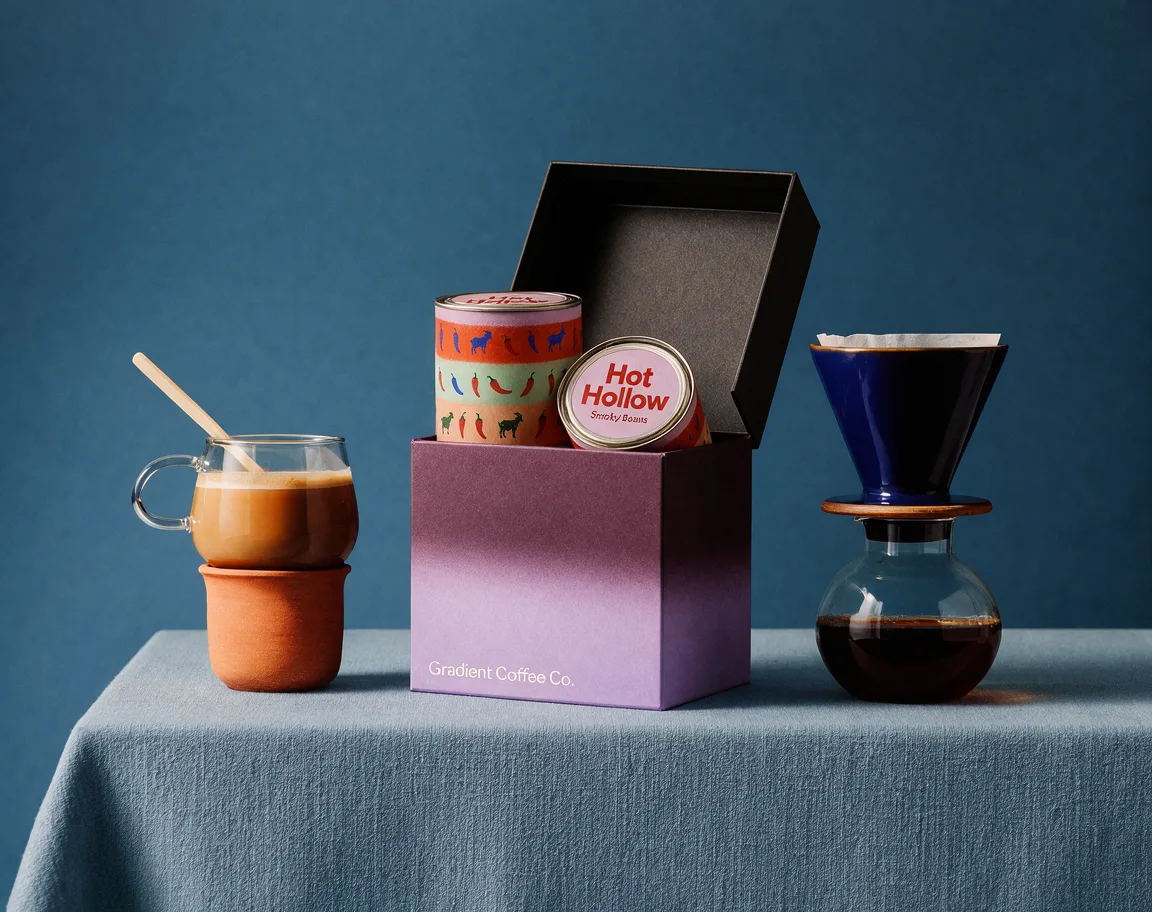
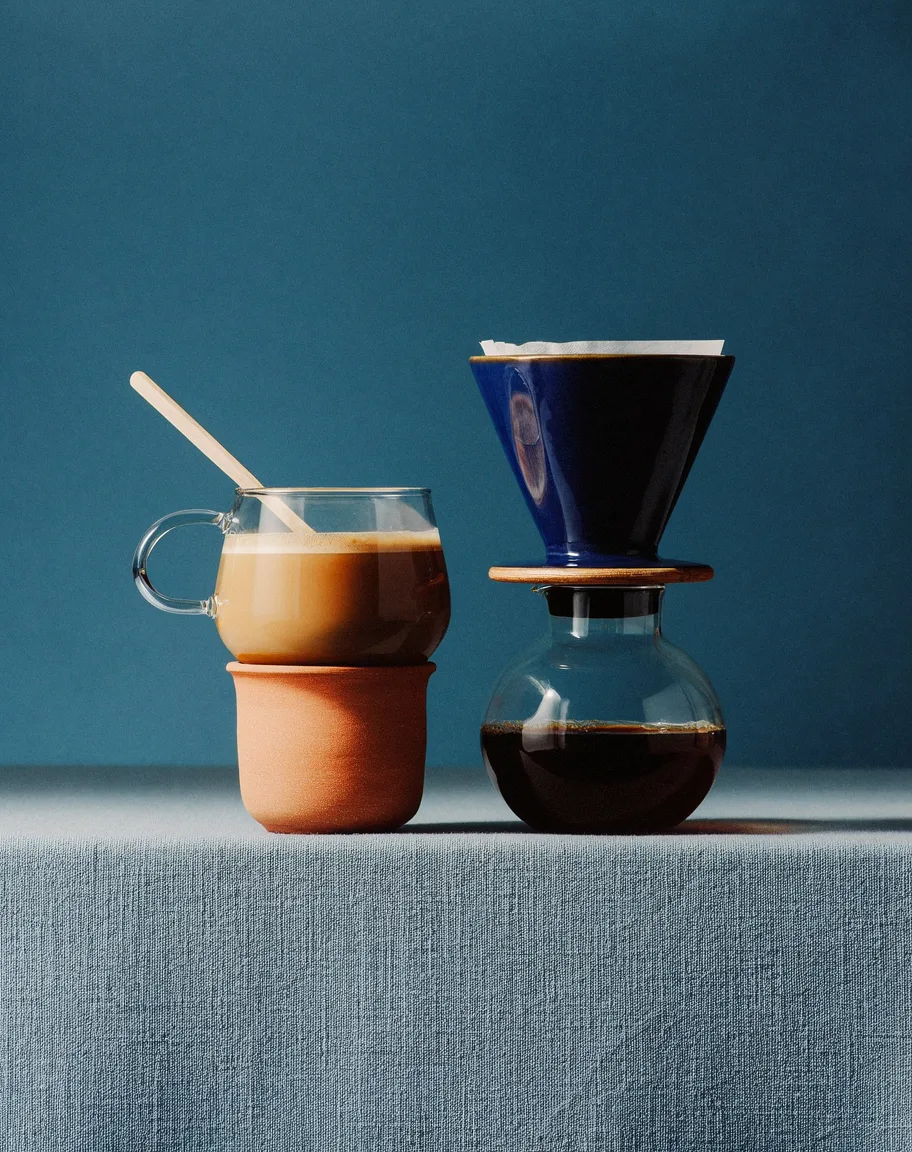
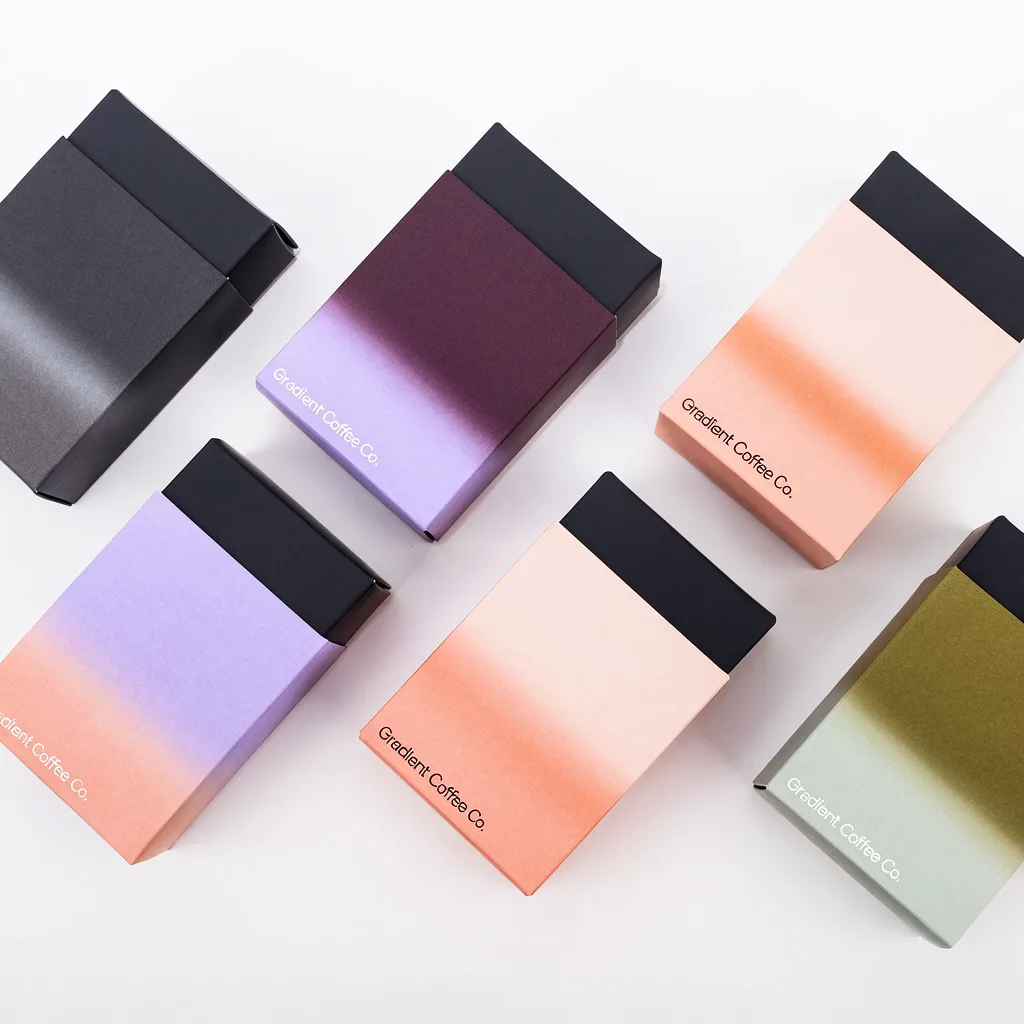
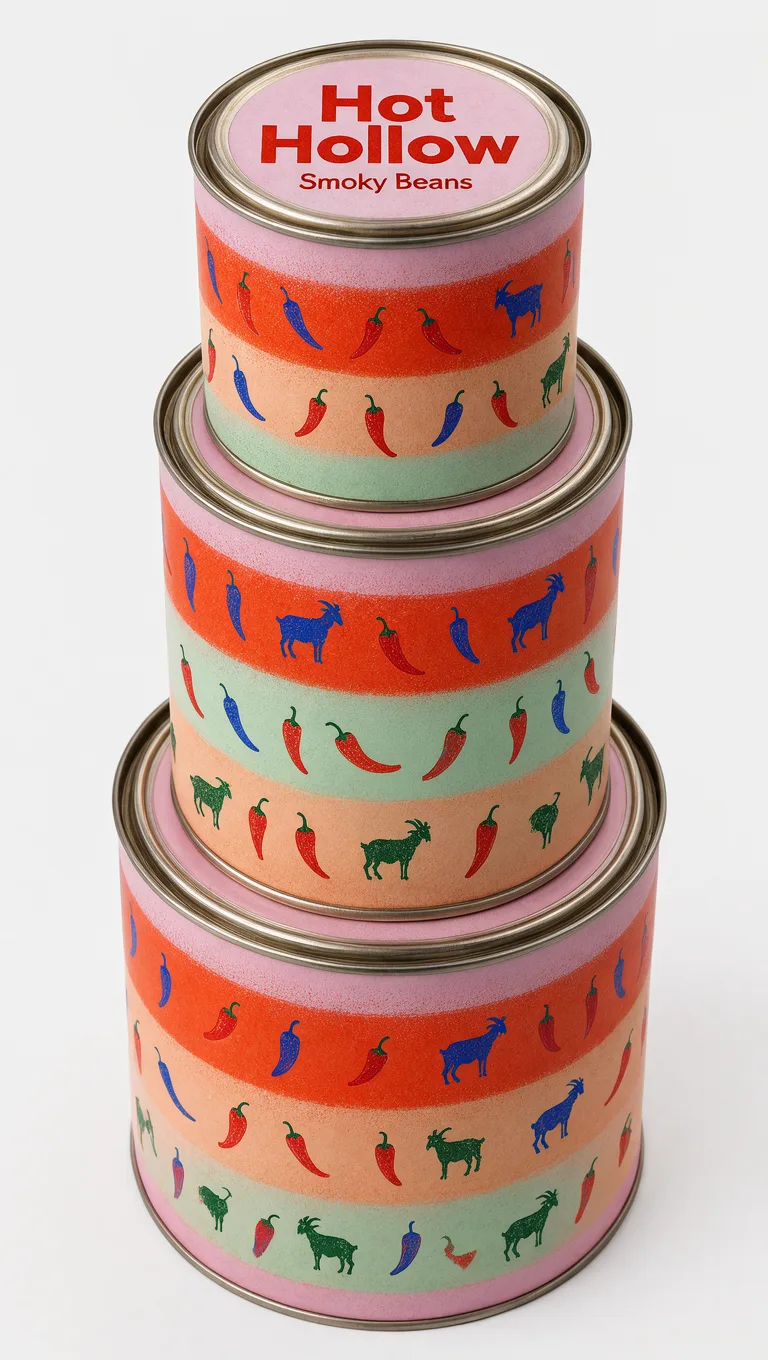
Use image 1 as the blue studio scene, image 2 as the packaging reference, and image 3 as the coffee tins. Assemble a coffee starter kit with the dripper, glass mug, ceramic mug, gift box and two tins. Preserve the label artwork, realistic materials and soft studio shadows.
Change one detail. Keep the scene.
Tell Krea 3 which object changes and name the surrounding details that should remain. A precise brief is easier to review than a broad request to improve everything.
Reference demonstration. The workspace supports instruction-based editing; it does not provide the source site’s regional drawing interface.
A color code. A new possibility.
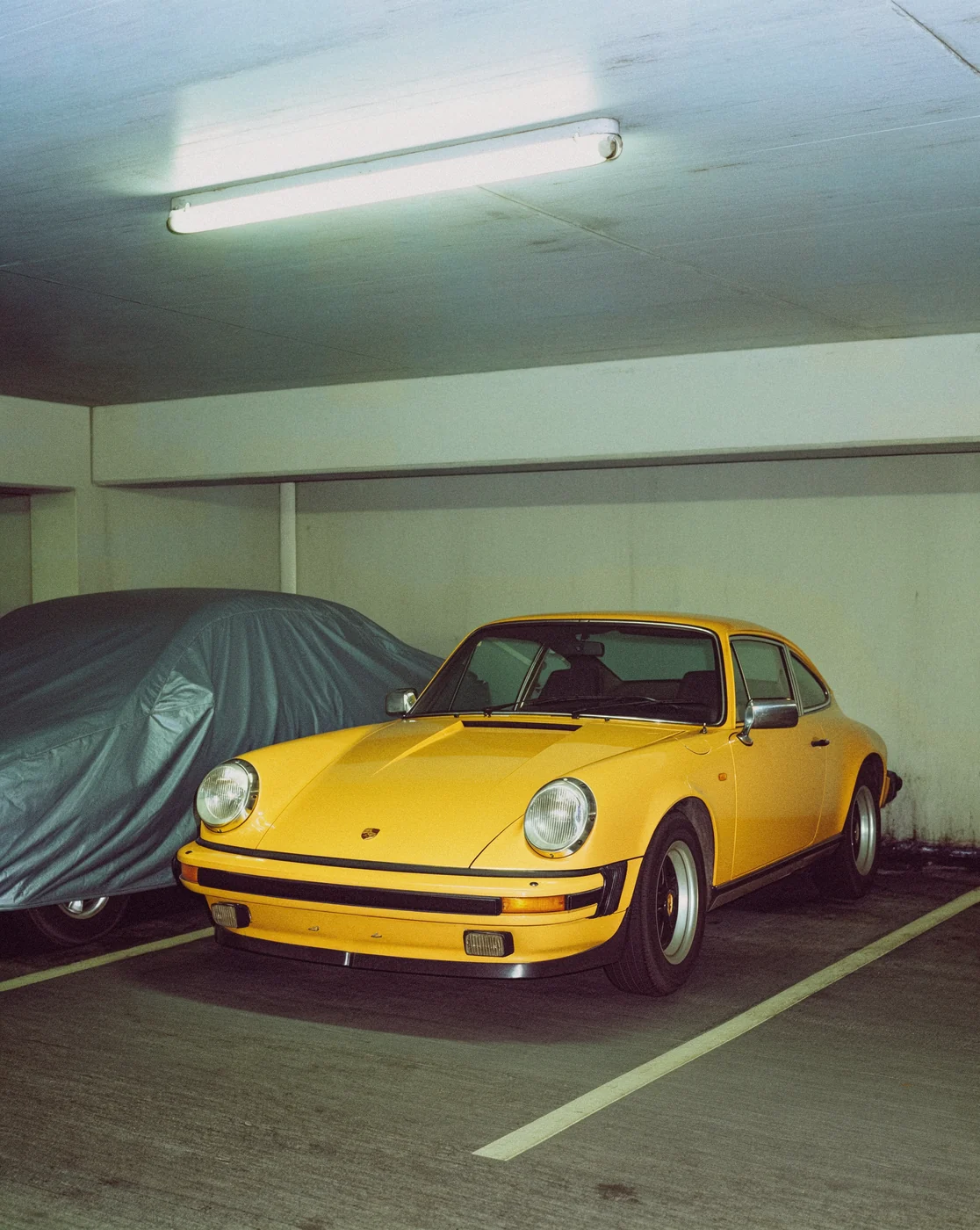
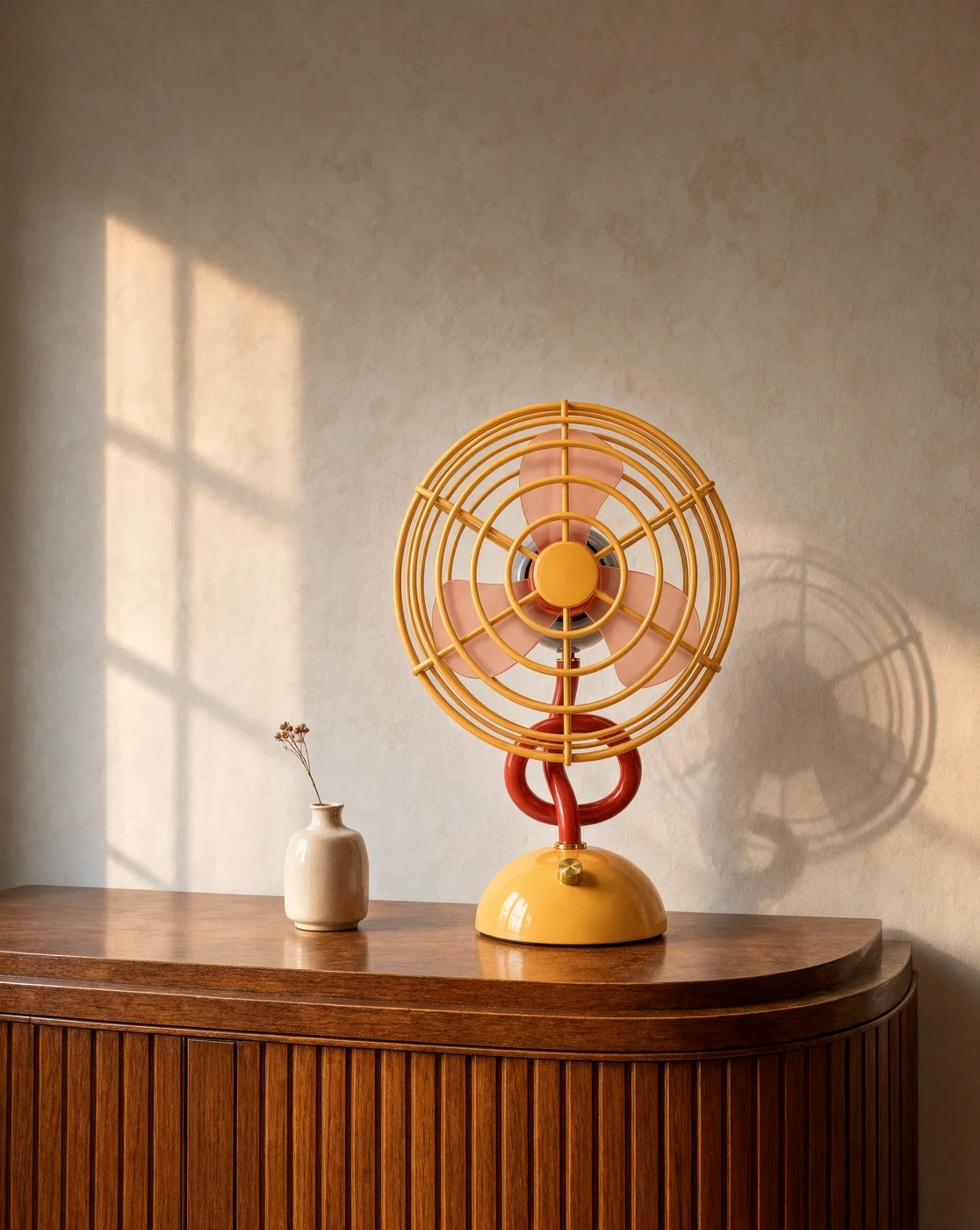
Use a hex code in your Krea 3 brief to direct the product palette. Compare the supplied color studies, then inspect the generated material under its actual lighting.
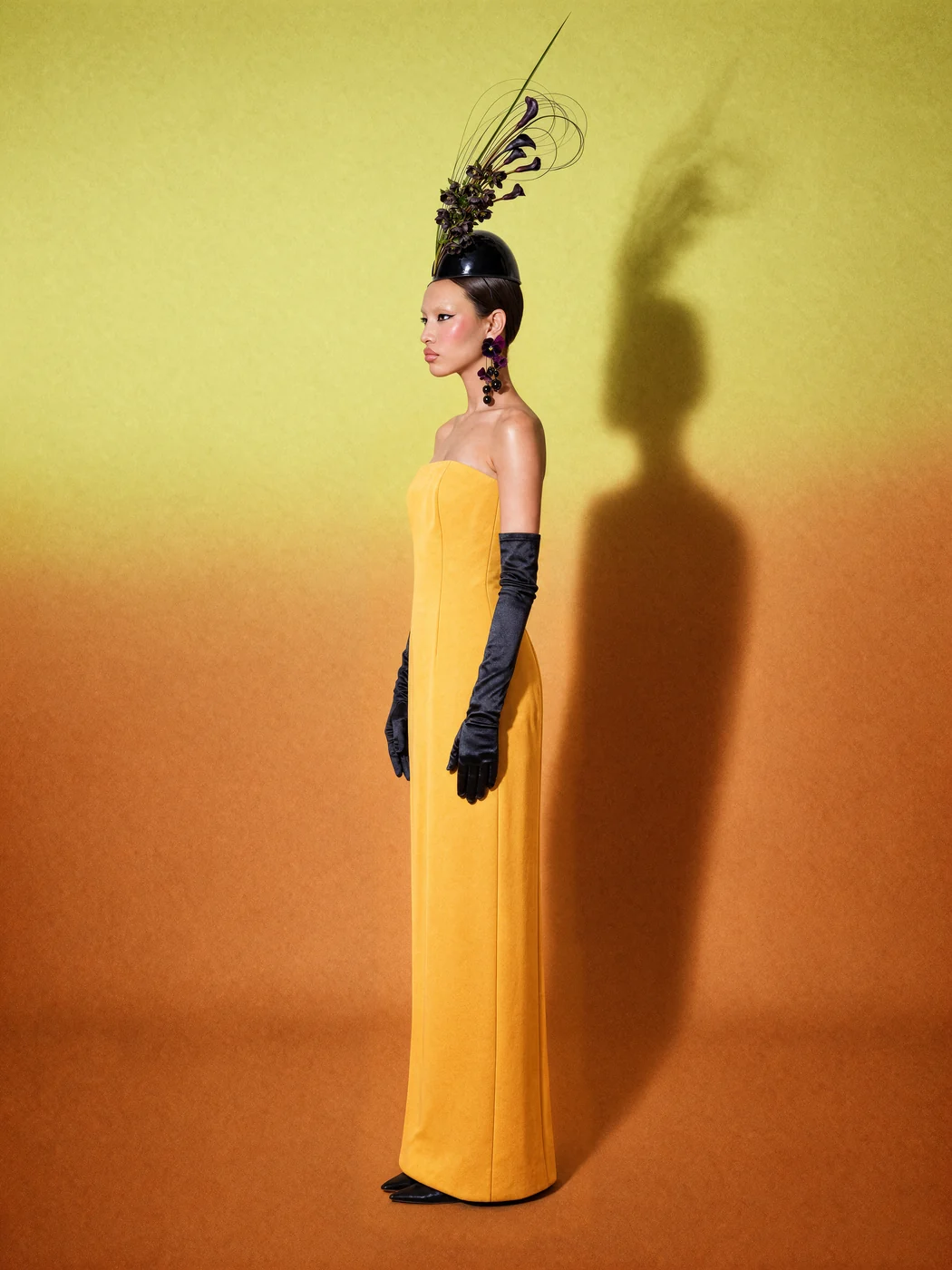
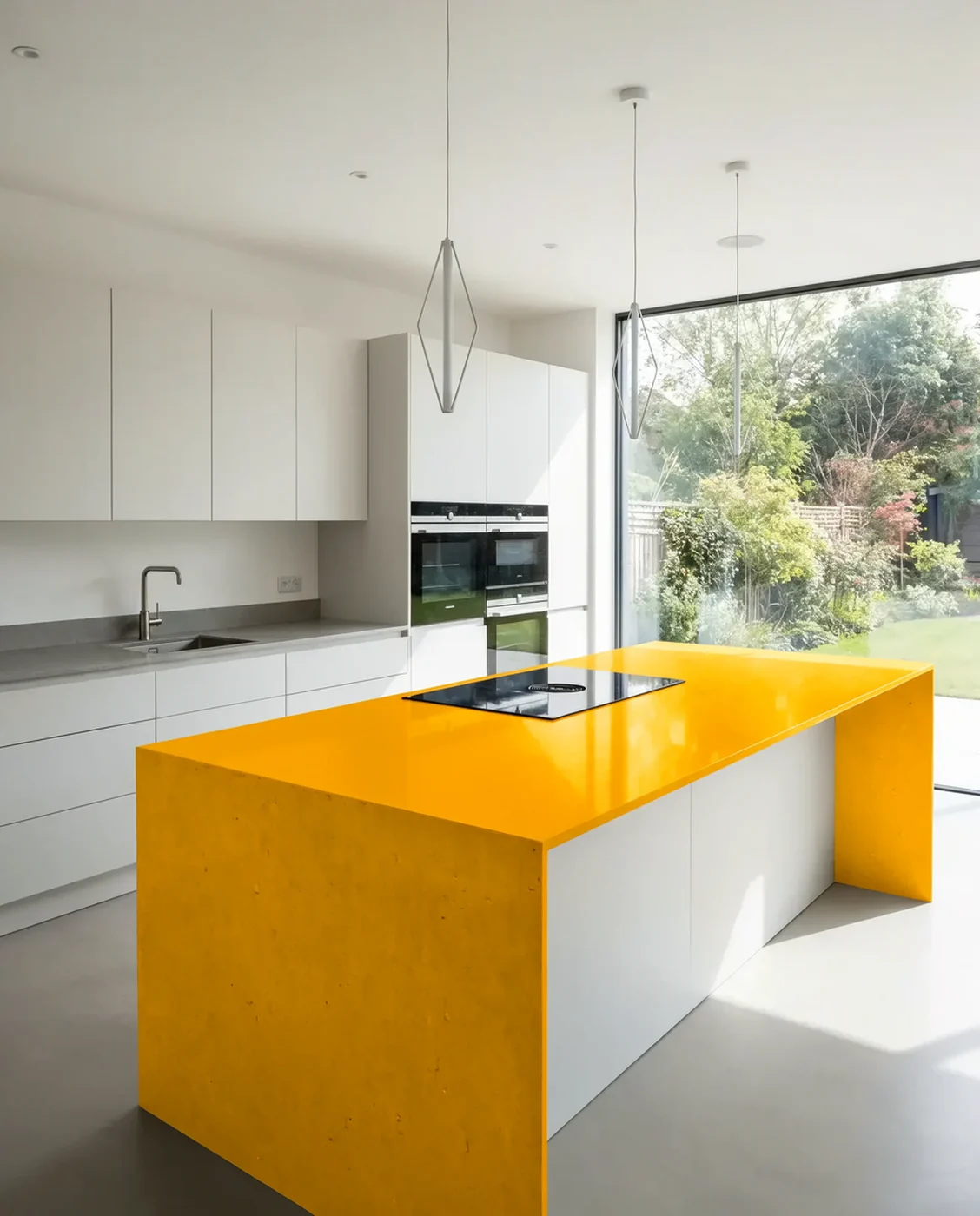
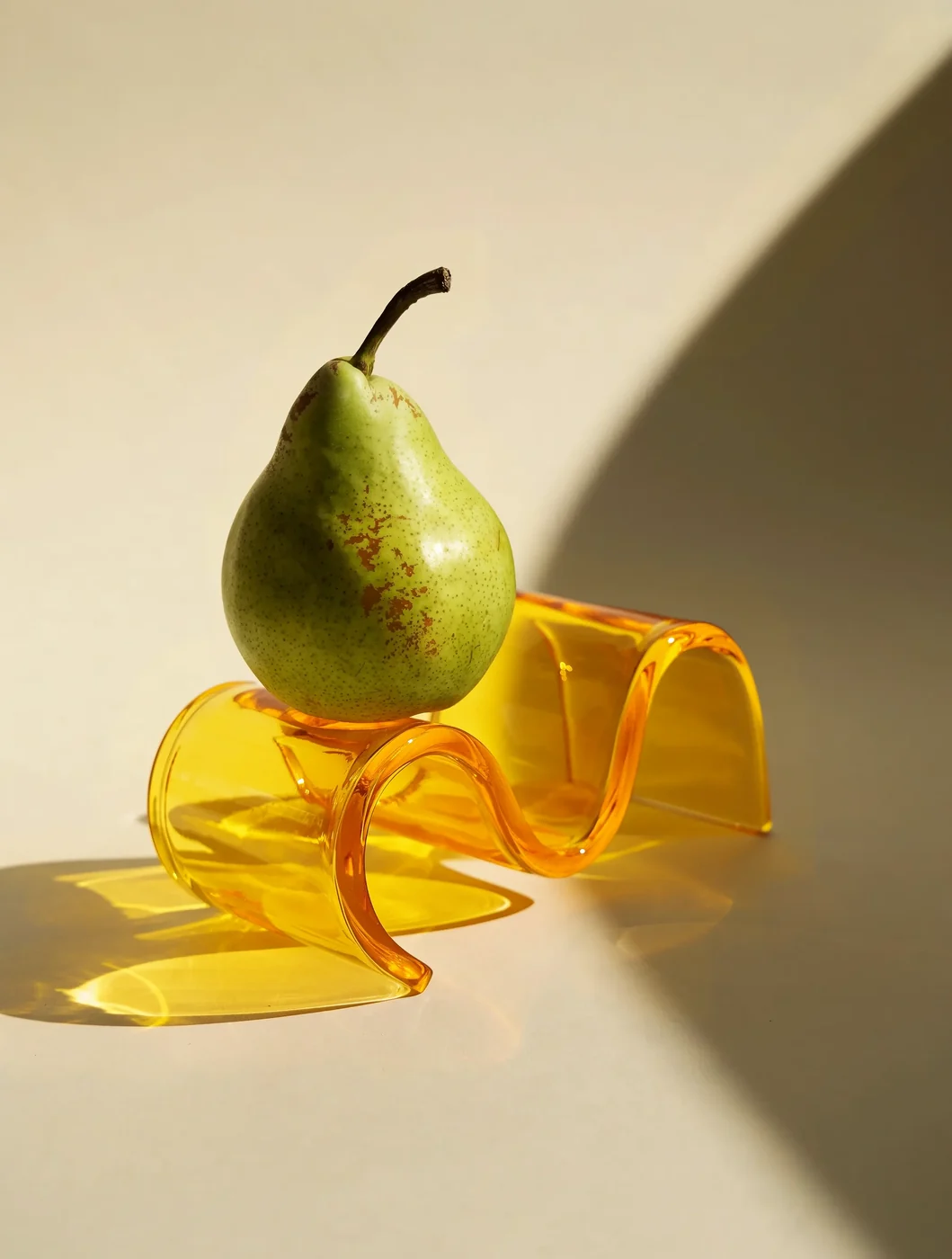
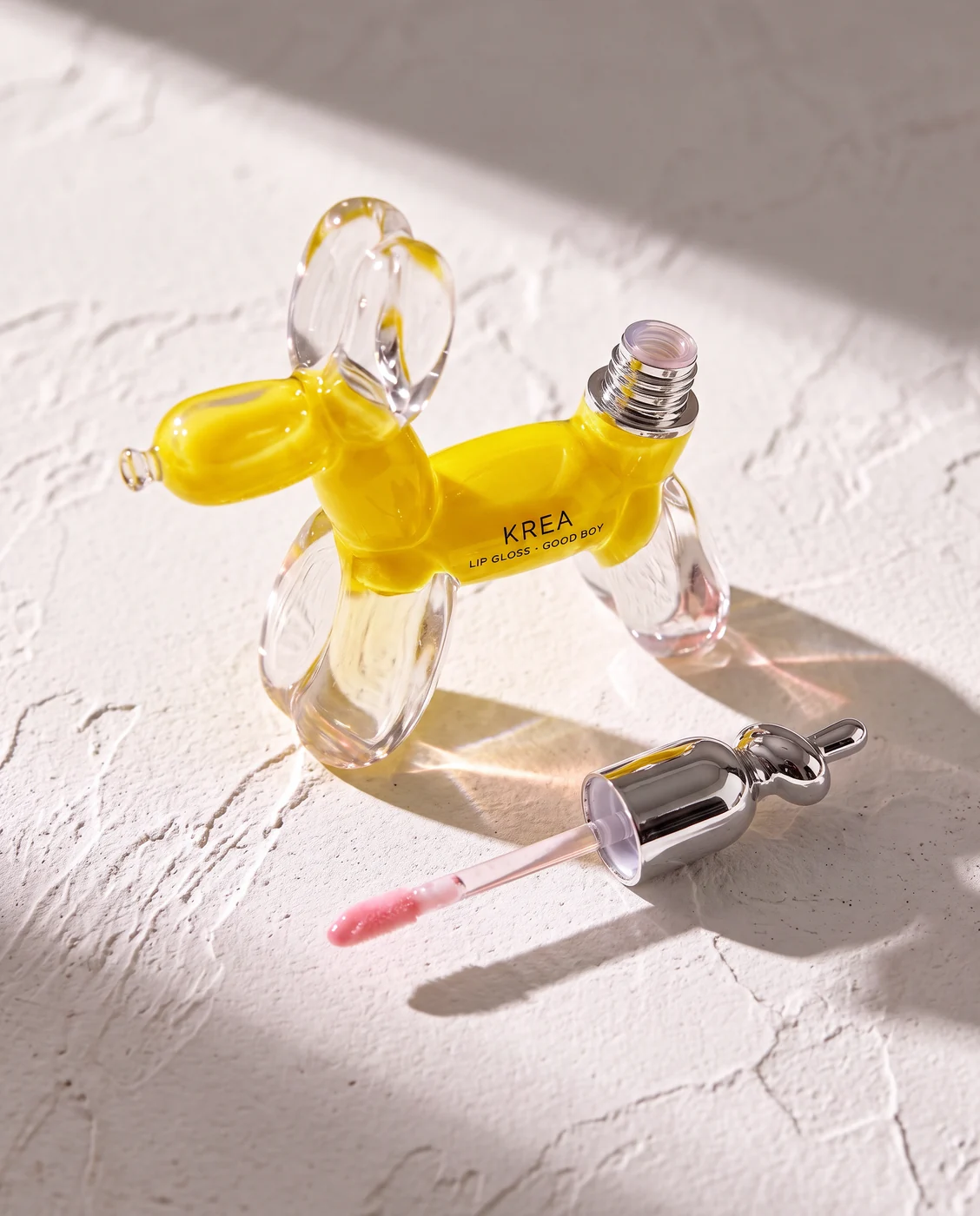
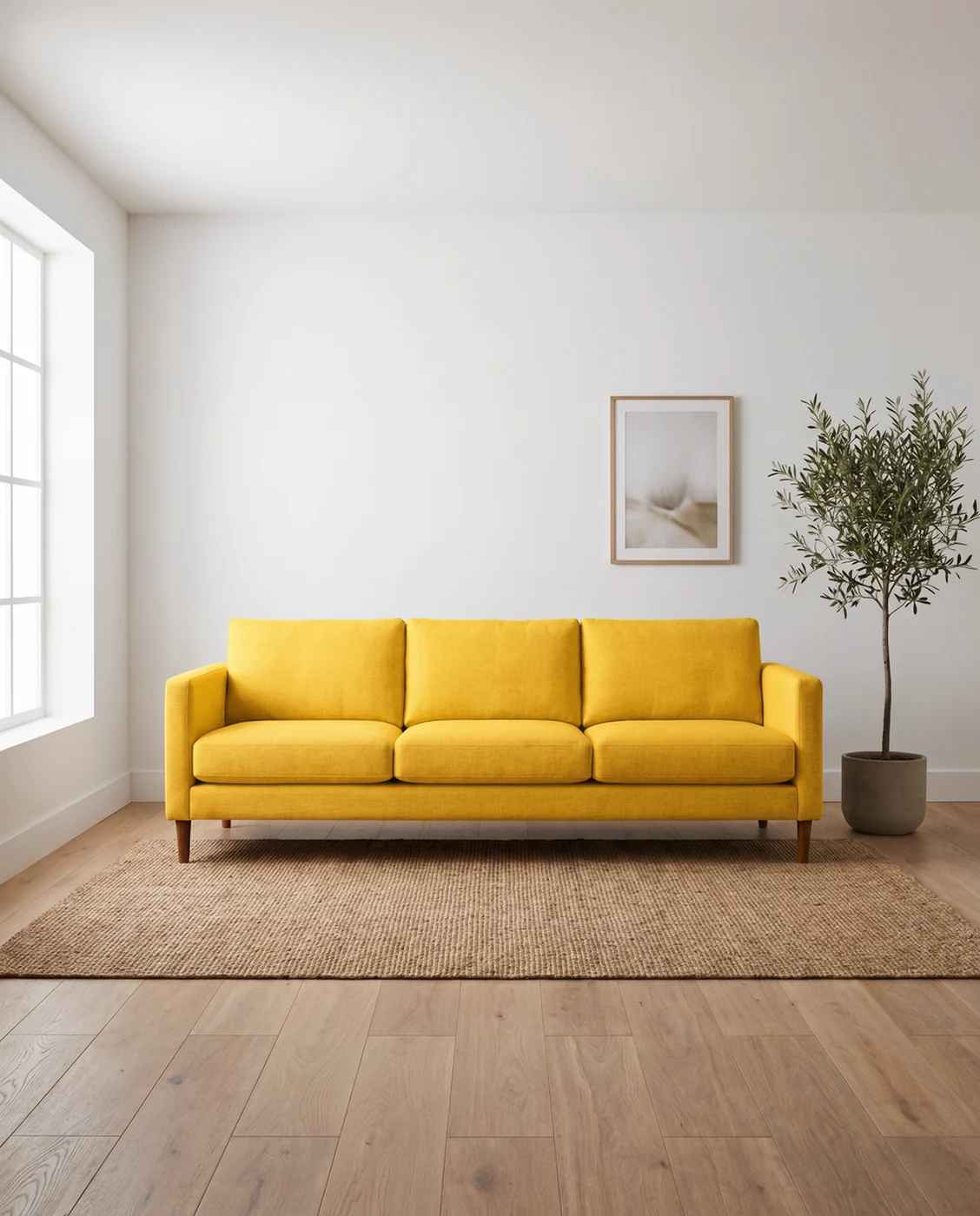
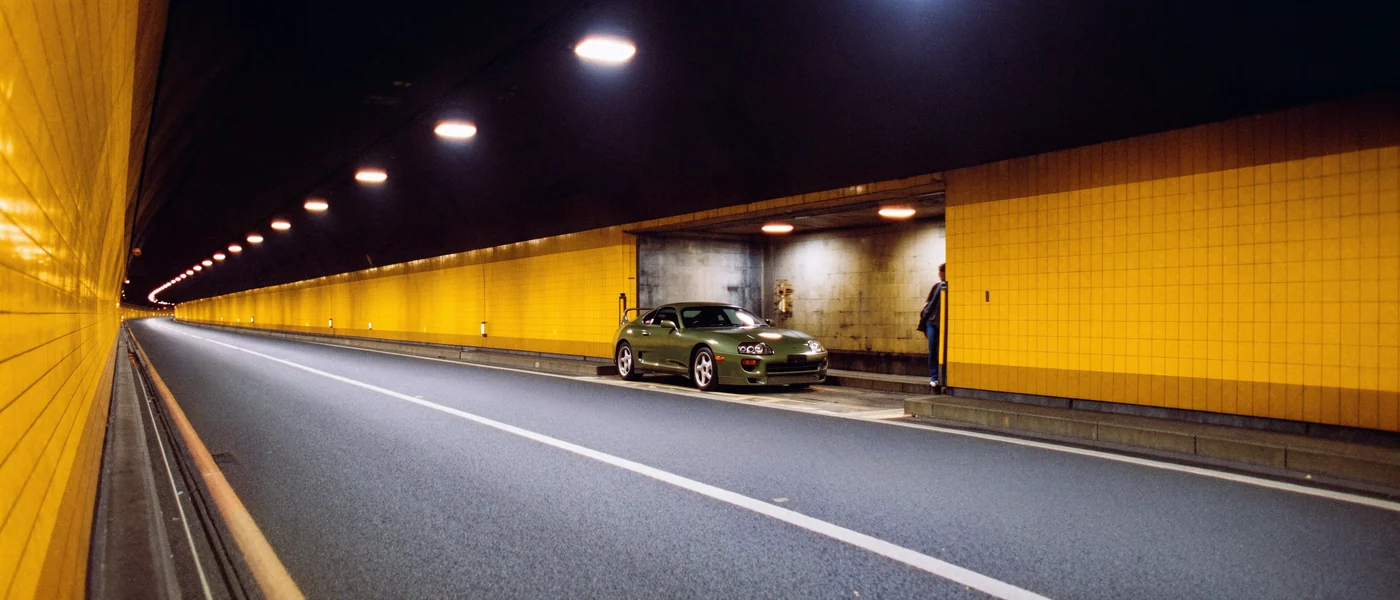
Krea 3 references
Bring the pieces. Build one picture.
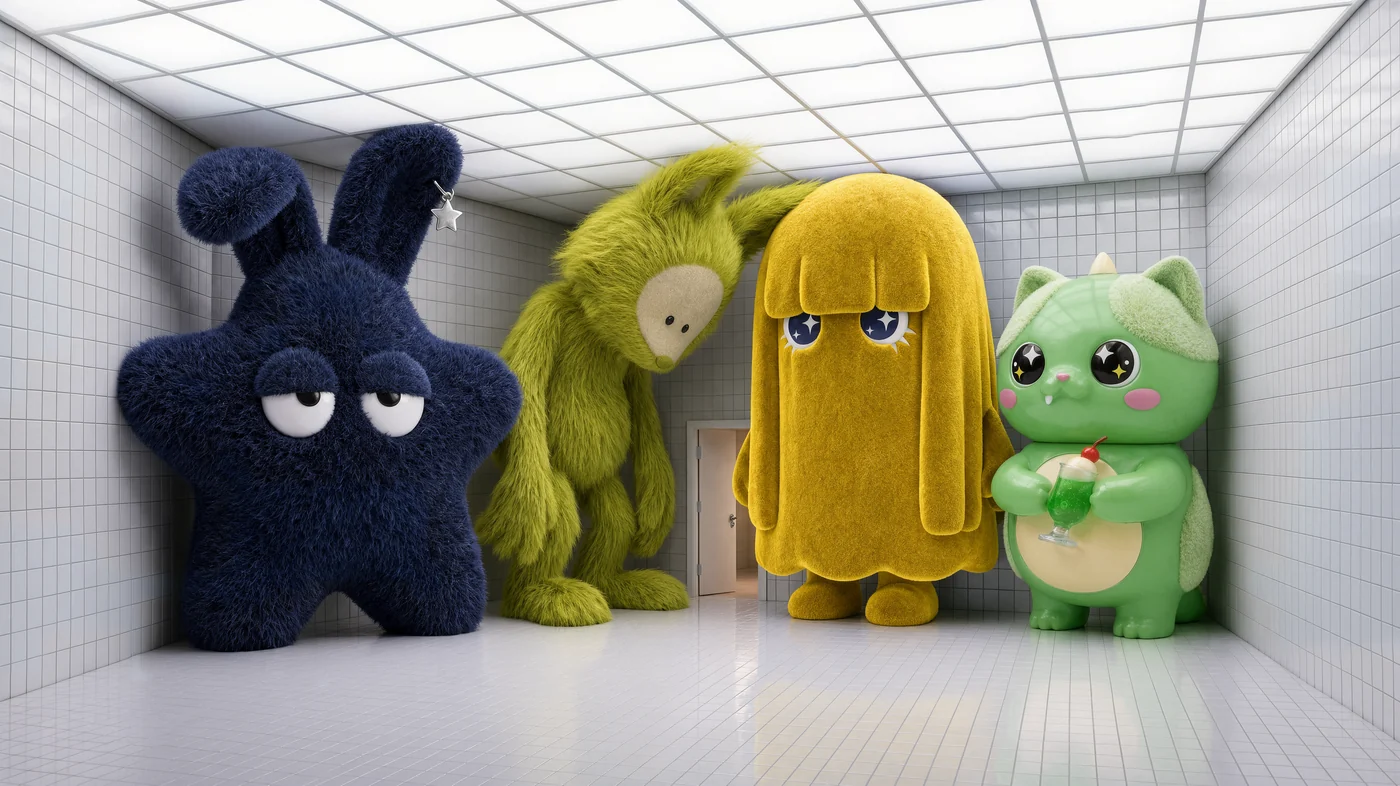
Give Krea 3 a scene, a product and a style. Number each reference in the prompt so the model can distinguish identity from wardrobe, composition from material. Up to eight references can inform one output.
Different scenes. A familiar character.
Explore Krea 3 character studies from the launch gallery. These clips demonstrate sequences of image edits; they do not imply a Krea 3 video-generation endpoint.
Native detail. Room to look closer.
Inspect a Krea 3 architectural image at full width. Select 2K in the workspace when a larger output suits the assignment; actual dimensions follow the selected aspect ratio.
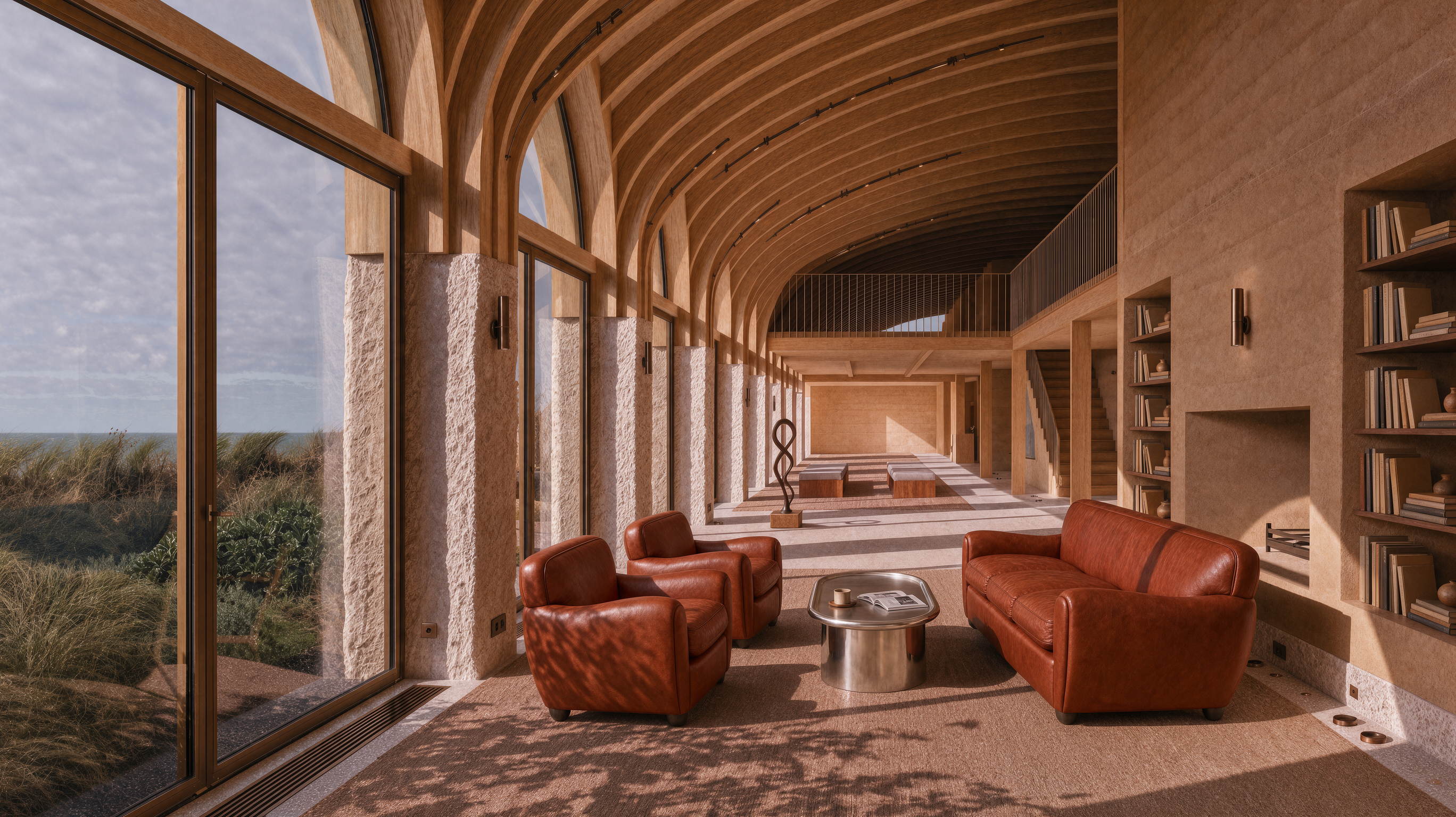 Open full image ↗
Review the change. Then try the next.
Product studies show Krea 3 adapting a packshot to a new environment. Hold an image to inspect its input. Each card carries an editable prompt and the matching source image.
For the whole design brief.
Explore Krea 3 posters, packaging and editorial directions. Compare layout and lettering against the reference before using an image in a campaign.
Say what changes
A short instruction. A clear next draft.
Start a Krea 3 edit with an ordinary sentence. Use your device’s keyboard dictation if you prefer speaking, then review the text before Create. Keep one visible decision in each instruction.
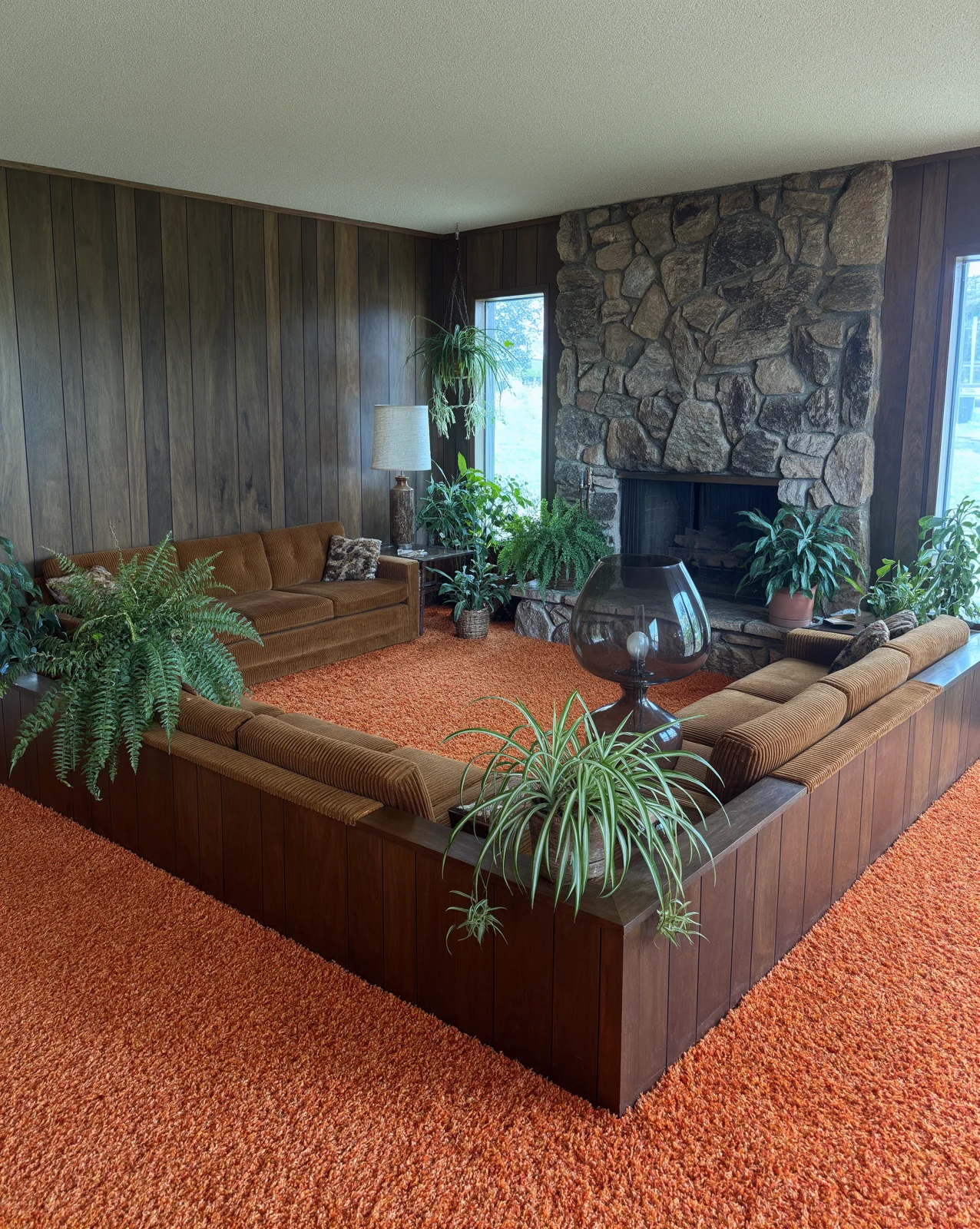
251 starting points. Your next direction.
Browse Krea 3 launch examples across photography, products, games and architecture. Reconstructed prompts are starting briefs, not a guarantee of reproducing the source output.
Sketch the thought. See the result.
A sketch, moodboard or old photograph can guide a Krea 3 image. Explain which shapes and materials should survive the transformation.
Launch film and demonstration media sourced from Krea. Krea3.io is an independent service with its own account, credits and available tools.
Questions, answered.
What to know before a Krea 3 generation.
What can I create with Krea 3?
Krea 3 generates images from a written brief and edits uploaded references. Give the model a specific subject, change and intended use. Review the complete Krea 3 result before use.
Is Krea3.io the official Krea website?
Krea3.io is an independent service connecting Krea 3 through fal. Your account, subscriptions, credits and generation history belong to this website. A subscription bought elsewhere does not fund this account. Source imagery does not establish a partnership, endorsement or identical performance.
How does Krea 3 generation use credits?
Krea 3 counts output and processed reference pixels at $0.025 per megapixel. Each reference is capped at the output size; one megapixel is 1024² pixels. Cost converts at one cent per credit, rounded upward, with a four-credit minimum. High reasoning adds five megapixels to Krea 3 editing cost.
Why can references change the Krea 3 quote?
Reference images increase the material Krea 3 processes. The browser displays a conservative ceiling based on their count. Before reservation, the server validates file dimensions, so smaller references may reduce the charge. Purchase prices follow the separate catalog.
How do Krea 3 Berry and Jam differ?
The provider positions Krea 3 Berry around quality and Jam around speed. Both support text generation and reference editing. Negative prompts apply to Berry.
How many references can I add to Krea 3?
The Krea 3 edit endpoint accepts one to eight images. Number their roles in the prompt. Fewer well-chosen images often make the intended Krea 3 task clearer.
What do Krea 3 1K and 2K mean?
A square Krea 3 1K output is 1024×1024 pixels; square 2K is 2048×2048. Other ratios change edge lengths within the supported pixel ceiling, rounding dimensions to multiples of sixteen.
What does reasoning change in Krea 3?
Low and Medium effort are available in both Krea 3 modes. High is edit-only and adds five billable megapixels. The provider describes additional planning capabilities, but this workspace uses prompts and references rather than a drawing interface. Try a clear instruction first, then assess whether another Krea 3 attempt is useful.
Does Use this prompt start a Krea 3 generation?
Use this prompt prepares a Krea 3 draft without submitting a generation. Editing examples also load paired public reference images. Inspect the inputs, adjust the brief and review settings before Create. Reconstructed prompts are starting directions, not guarantees of reproducing source artwork. Preparing the draft itself consumes no generation credits. Before creating, check that every reference has finished loading and appears in the upload area. Replace any unrelated photo, confirm the selected mode and output size, then read the credit estimate again. You can change the prepared description or remove a reference without submitting a paid request.
Can Krea 3 keep a product or face consistent?
References can guide Krea 3 toward a recognisable product or face. Name the silhouette, label or features that must remain, then describe the new setting separately. Compare the complete output with the original. Inspect proportions, logos and fine print before publishing; overall similarity does not guarantee every detail is accurate.
Can I use a Krea 3 seed or negative prompt?
A seed can make a Krea 3 request more reproducible when other settings stay the same. Use minus one for a new random seed. Berry also accepts negative prompts describing unwanted elements. Neither control replaces clear direction or a careful review of the returned image.
Where are Krea 3 results and failed-job credits?
Generation requires login and sufficient credits. Krea 3 jobs reserve quoted credits while processing and settle on confirmed completion. Confirmed failures release or refund reserved generation credits; pending jobs do not automatically fail. Monetary refunds follow the separate policy. Download access retains this website’s existing previous-purchase requirements.
Can Krea 3 examples be used for video?
The connected Krea 3 endpoints produce images. Character clips and the launch film are demonstrations, not evidence of a connected video endpoint. Separate AI Video models have their own inputs, durations and quotes. To animate an image, choose an available image-to-video workflow and review its requirements before submitting.
How do I write a useful Krea 3 edit prompt?
Begin a Krea 3 edit with what stays, then explain the change and the light or framing. For perfume, preserve the bottle and lettering, place it in a hand against a cobalt sky, and request believable glass reflections. Review the Krea 3 result, then revise one instruction for the next decision.
Krea 3